Silk Mobile
Table of Contents (Homepage)
- Overview
- Setting Up
- Getting Started
- How To
- Connecting Devices And Emulators
- Preparing Applications For Testing
- Managing Applications
- Recording Tests
- Working With Test Commands
- Adding Commands To Your Scripts
- Object Commands
- Click
- ClickCoordinate
- ClickIn
- ClickOffset
- Drag
- ElementGetProperty
- ElementGetTableRowsCount
- ElementListPick
- ElementListSelect
- ElementListVisible
- ElementScrollToTableRow
- ElementSendText
- ElementSetProperty
- ElementSwipe
- ElementSwipeWhileNotFound
- GetAllValues
- GetElementCount
- GetElementCountIn
- GetTextIn
- IsElementBlank
- IsElementFound
- IsFoundIn
- LongClick
- RunNativeAPICall
- SendWhileNotFound
- VerifyElementFound
- VerifyElementNotFound
- VerifyIn
- WaitForElement
- WaitForElementToVanish
- GetCoordinateColor
- DragDrop
- Application Commands
- Device Commands
- Web (Hybrid) Specific Commands
- Utilities Commands
- Monitoring Commands
- Configuration Commands
- ExtractLanguageFiles
- SetDefaultClickDownTime
- SetDefaultTimeOut
- SetDefaultWebView
- SetDragStartDelay
- SetInKeyDelay
- SetKeyToKeyDelay
- SetLanguage
- SetLanguagePropertiesFile
- SetShowImageInReport
- SetShowPassImageInReport
- SetShowReport
- SetSpeed
- SetThrowExceptionOnFail
- SetWebAutoScroll
- StartStepsGroup
- StopStepsGroup
- TextFilter
- Miscellaneous Commands
- Controlling Element Identification Rules
- Editing Test Objects
- Executing Test Scripts
- Report Of Executed Test
- Working From Code Environment
- Continuous Integration
- Layout Verification Tests
- Use Device Vitals Monitors
- Troubleshooting
- Terminology
Transferring A Floating License
On this page we will provide instructions on how to rehost (transfer) a floating license from one machine to another.
PREREQUISITES:
-
RUS_KYBXC.exe – The License activation utility. It should be installed on both machines (source machine and recipient machine).
-
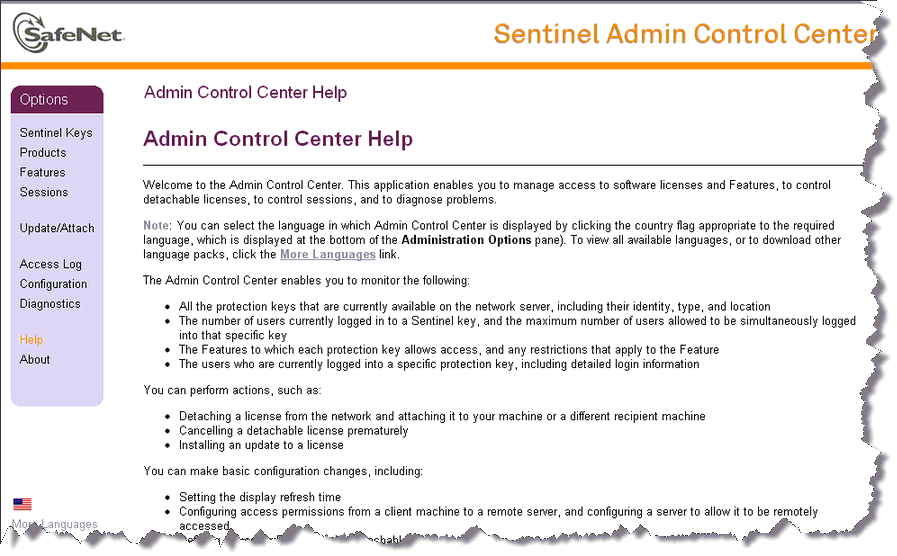
This is how the source machine should look before:
Step 1: Download Haspdinst.exe - the Sentinel runtime installer on the recipient machine.
-
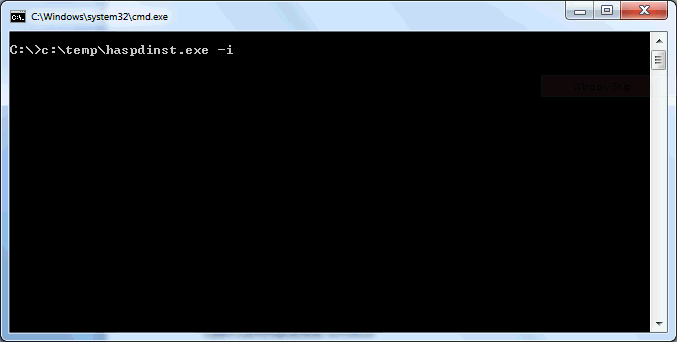
Open the command window
-
Run the following command <path to>\haspdinst.exe –i
-
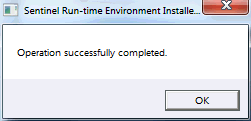
The installation will be completed within few minutes and the following message will then be displayed:
Step 2: Collect Information from the Recipient Computer
-
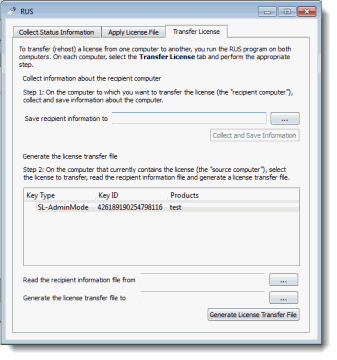
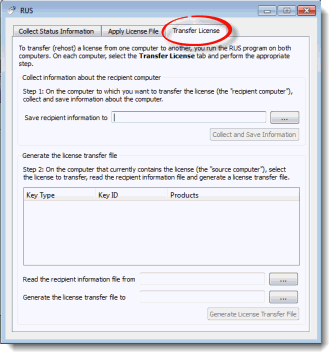
On the recipient machine , launch the RUS utility (RUS_KYBXC.exe) and click on the "Transfer License" tab.
-
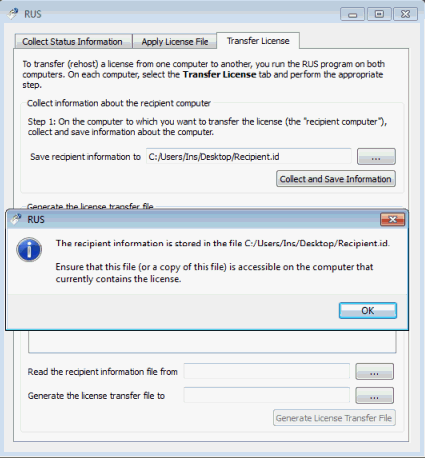
Follow the instructions labeled "Step 1" to collect information about the computer and save it to a file.
-
Make sure that the file (or a copy of the file) is accessible on the source computer.
Step 3: Generate the License Transfer File (.H2H).
-
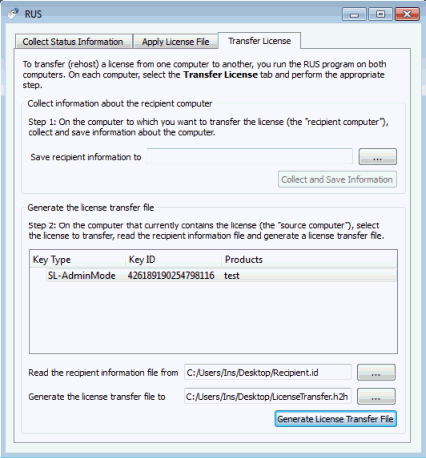
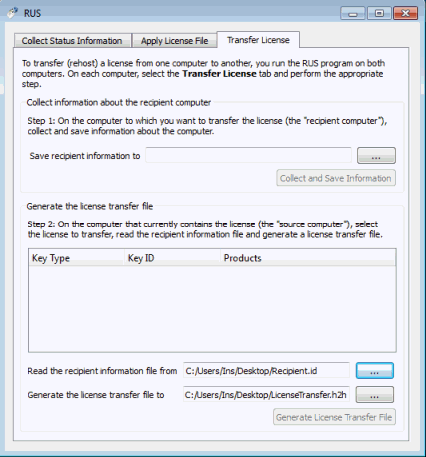
On the source computer , launch the RUS utility (RUS_KYBXC.exe) and click the "Transfer License" tab. License should be available the products table.
-
Follow the instructions labeled "Step 2" to select the Floating license key to transfer, read the recipient information file, and generate a license transfer (h2h) file.
-
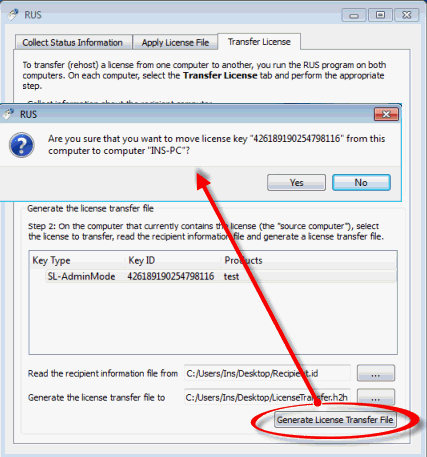
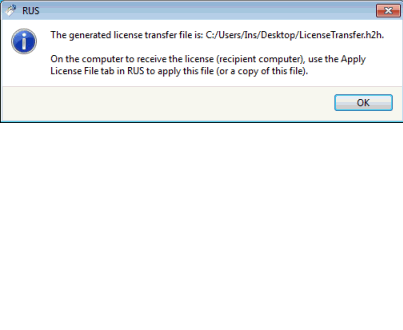
Click on "Generate License Transfer File" button

-
After you perform this step, the Floating license key is no longer available on the source computer. Make sure that the license transfer file .h2h (or a copy of the file) is accessible on the recipient computer.
Step 4: Apply the License Transfer File.
-
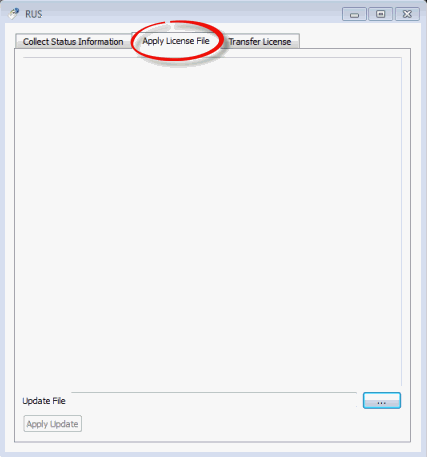
On the recipient computer , run the RUS utility, click the "Apply License File" tab
-
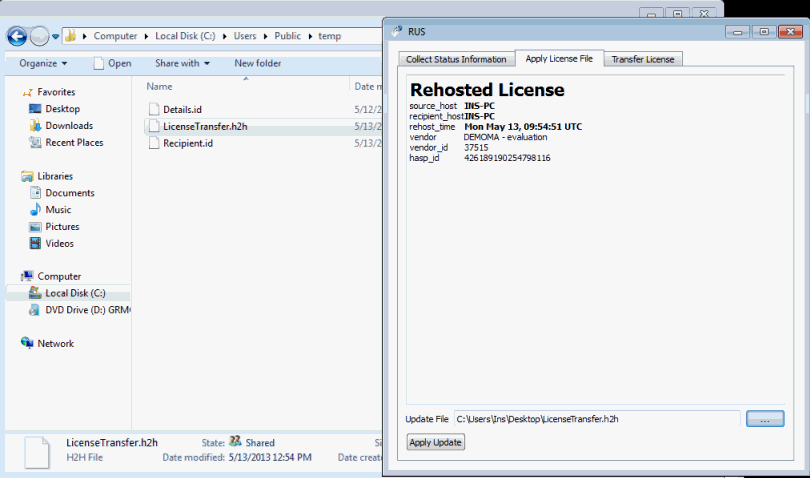
In the "Update File" field, click the "Browse" button and locate the license transfer (h2h) file.
-
Click "Apply Update". The Floating license key is installed on the recipient computer.
Finish : Browse http://localhost:1947 to see the Web UI as in the following screenshot: